ngSumBox
Next Generation Analog Summing System
with Digital Recall, Automation, and Advanced Controller Integration
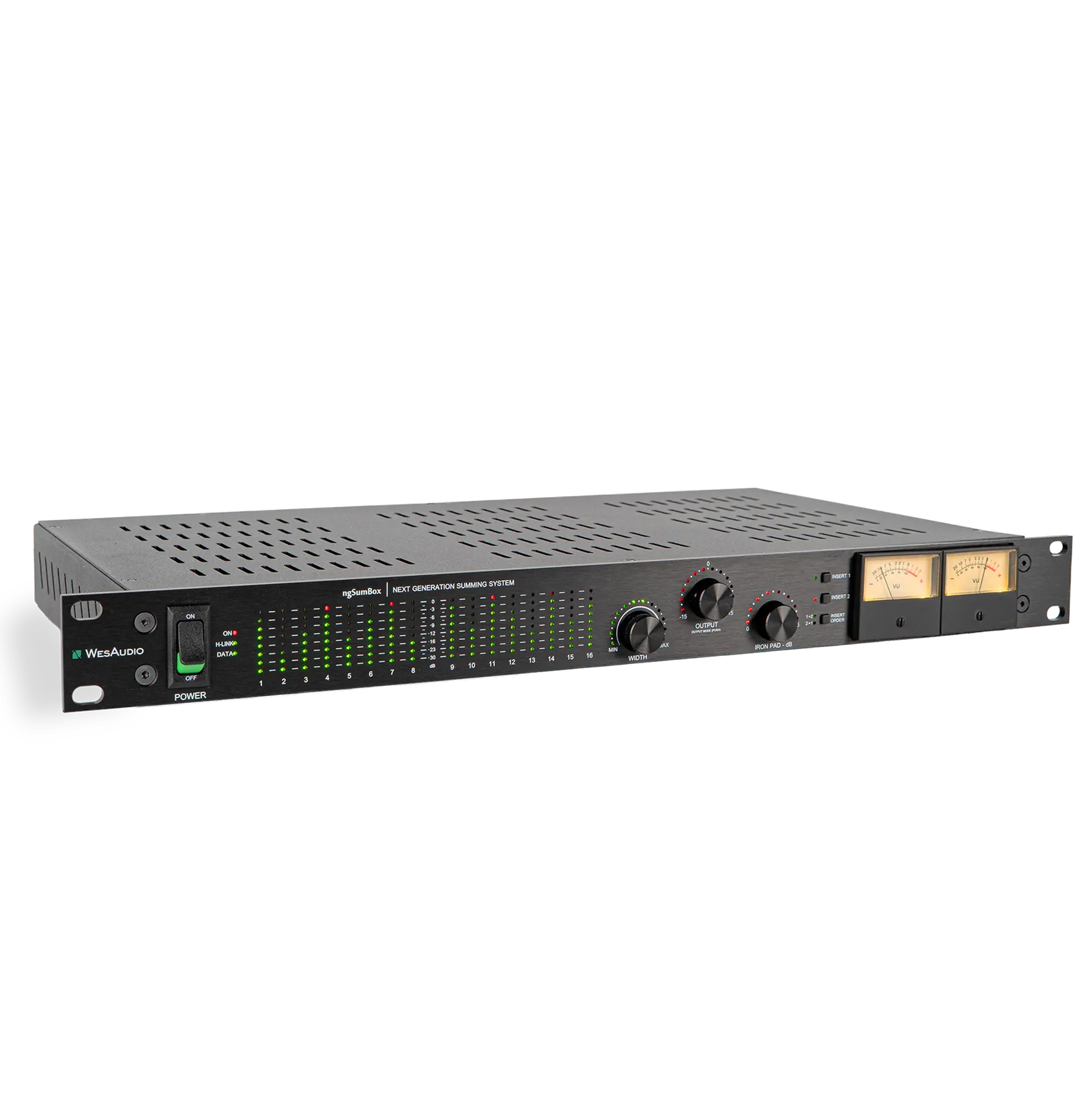
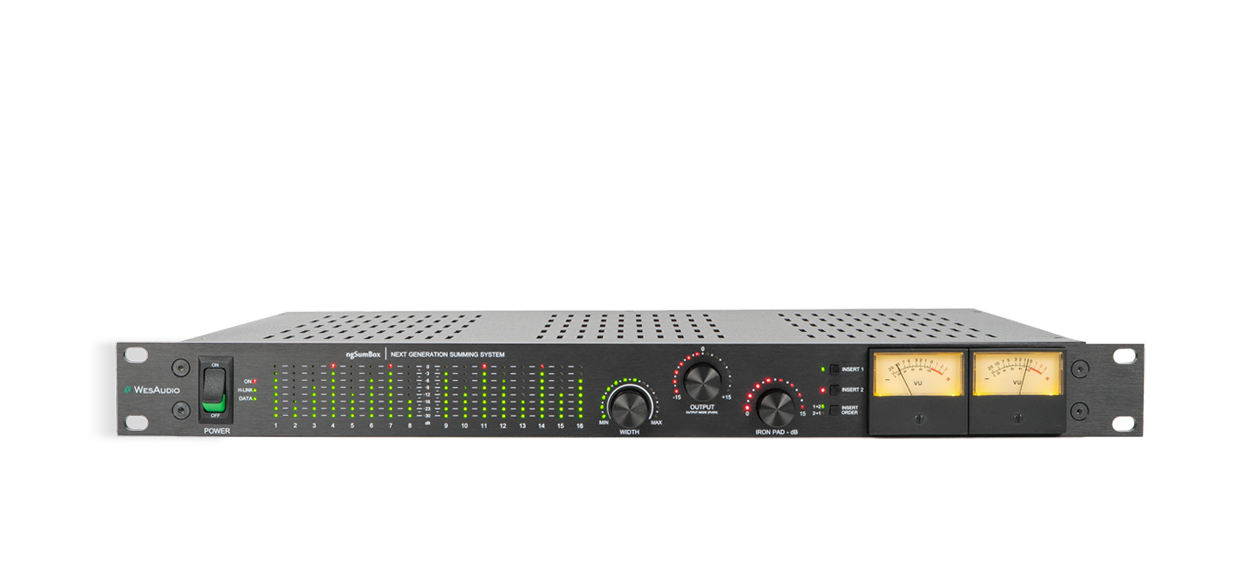
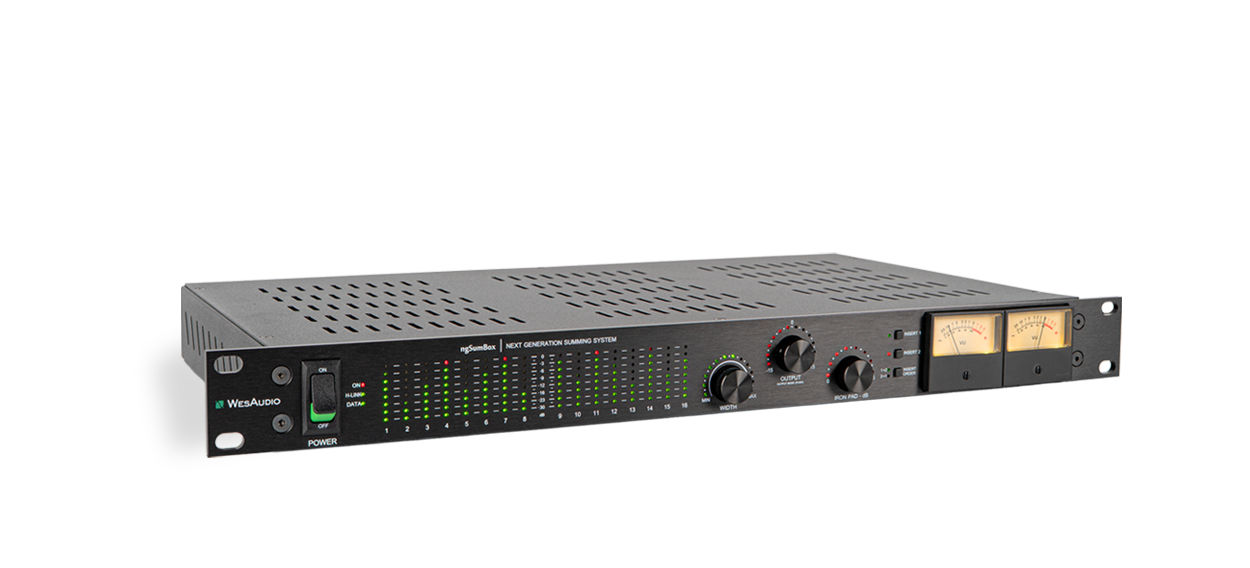
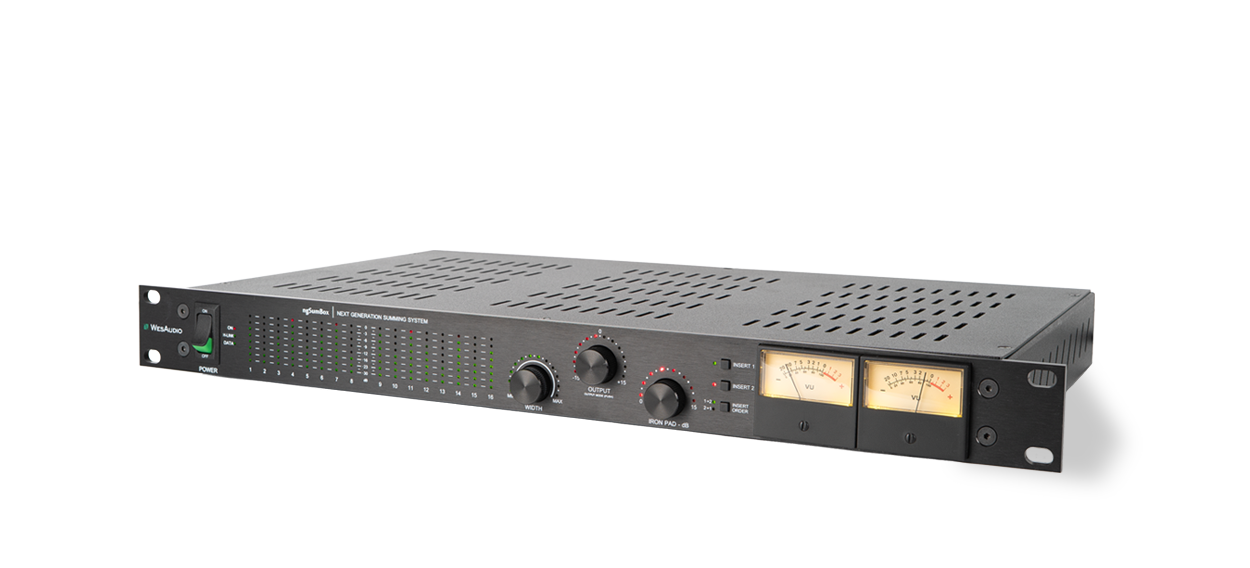
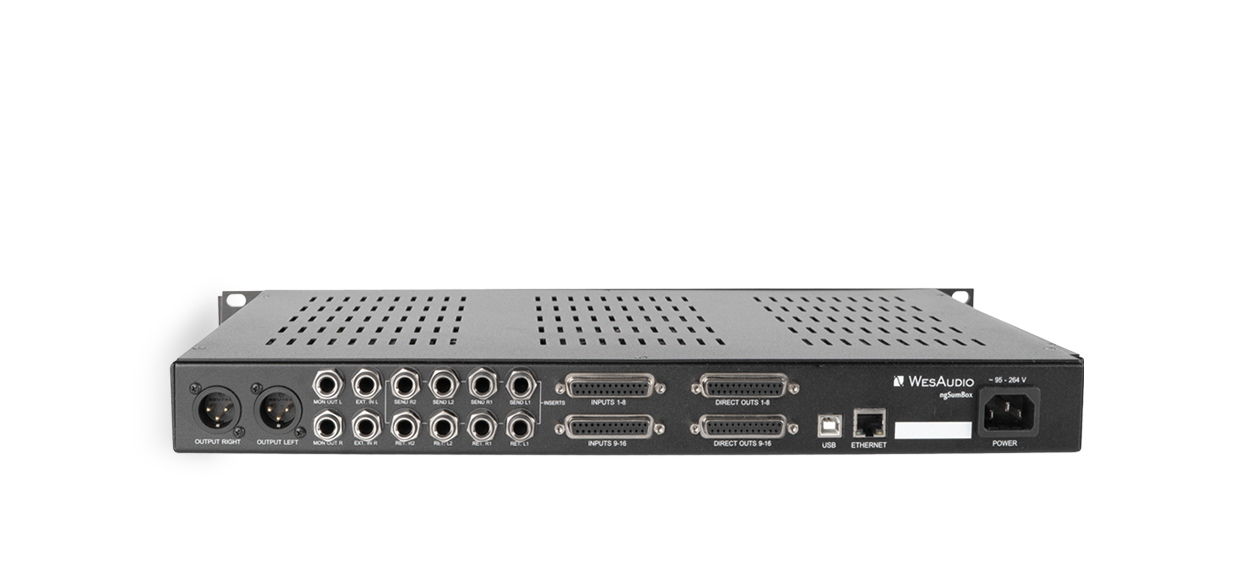
ngSumBox
Next Generation Analog Summing System
For decades, analog summing has been the foundation of depth, width, and musical cohesion in professional mixes. ngSumBox redefines this concept for the modern hybrid studio, combining true analog summing with full digital recall, automation, and deep integration with external control surfaces.
Designed as a high-end 18×2 summing solution, ngSumBox delivers the unmistakable sound of analog summing while offering the precision, flexibility, and workflow speed demanded by today’s productions. With support for MC and HUI controllers, ngSumBox brings back the tactile, console-like mixing experience — without sacrificing modern DAW convenience.
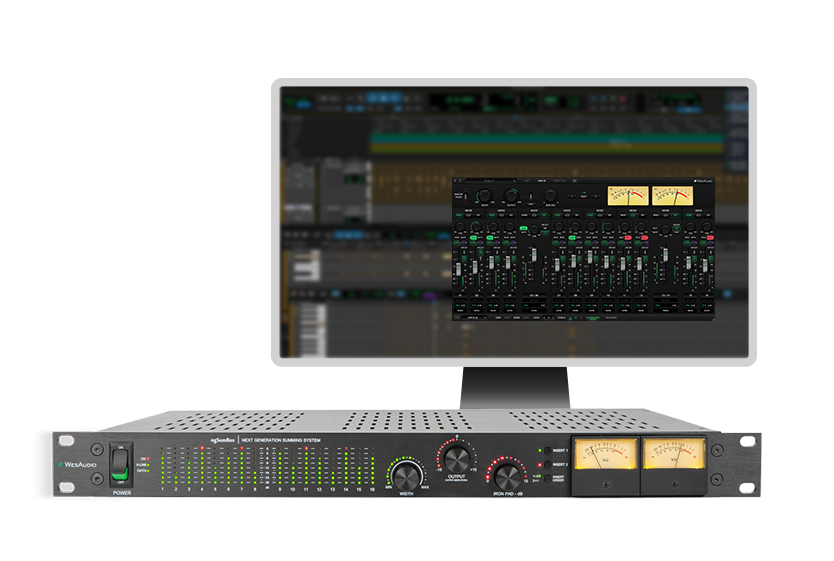
Package contents
| Device | x 1 |
| Power cable | x 1 |
| USB B cable | x 1 |
Main Features
ngSumBox Next Generation Analog Summing System with Digital Recall, Automation, and Advanced Controller Integration
ANALOG SOUND, DIGITAL CONTROL
True ANALOG sound with extremely convenient control!
18 × 2 Analog Summing Architecture
16 fully controllable summing channels with 2 additional external inputs for stems effects returns or submixes and a high-headroom analog signal path designed for professional studio environments.
16 Channels with Full Level Control and Automation
Individual level control for each channel with total recall and automation directly from your DAW and seamless integration into modern hybrid workflows.
Variable THD per Channel
Each input channel features adjustable Total Harmonic Distortion allowing you to dial in anything from pristine clarity to subtle harmonic enhancement and shape tone and depth on a per-channel basis.
LCR Routing per Channel
Each channel can be routed using a true LCR (Left–Center–Right) approach, allowing precise placement in the stereo field and creating solid, focused, and spacious mixes.
Advanced Metering
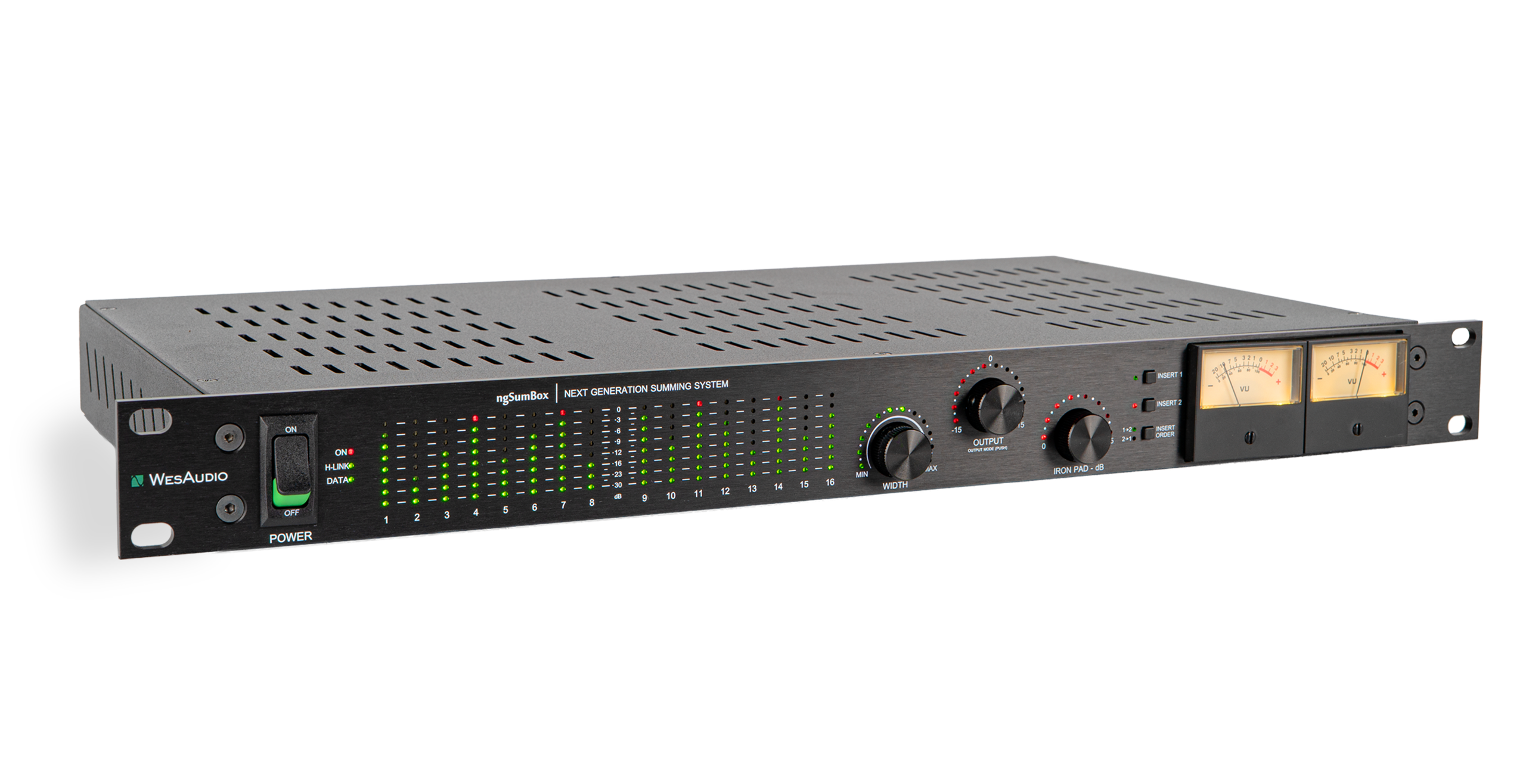
LED metering provides clear visual feedback for all 16 input channels, while dual illuminated VU meters display the levels of the summed stereo bus, giving a complete view of both individual channels and the final mix.
WIDTH Control – Proprietary Stereo Enhancement
The innovative WIDTH circuit is designed to naturally enhance the stereo image, utilizing gentle saturation and advanced side control to add depth and openness without introducing artificial widening artifacts.
Dual Insert Section with Full Recall
Two fully analog insert points on the summing bus can be enabled or disabled independently, with flexible insert order and full DAW recall, allowing seamless integration of external processors into automated workflows.
Selectable Output Stages
Featuring both Electronically Balanced and Transformer Balanced outputs, you can choose between a clean, transparent modern sound or a rich analog character with transformer coloration. The IRON PAD provides controlled saturation and level management, allowing you to switch between output stages to perfectly match the sonic character of your mix.
Total Recall and Plugin Control
Seamless DAW/live plug-in integration for effortless recall and enhanced workflow efficiency.
Main Features Summary:
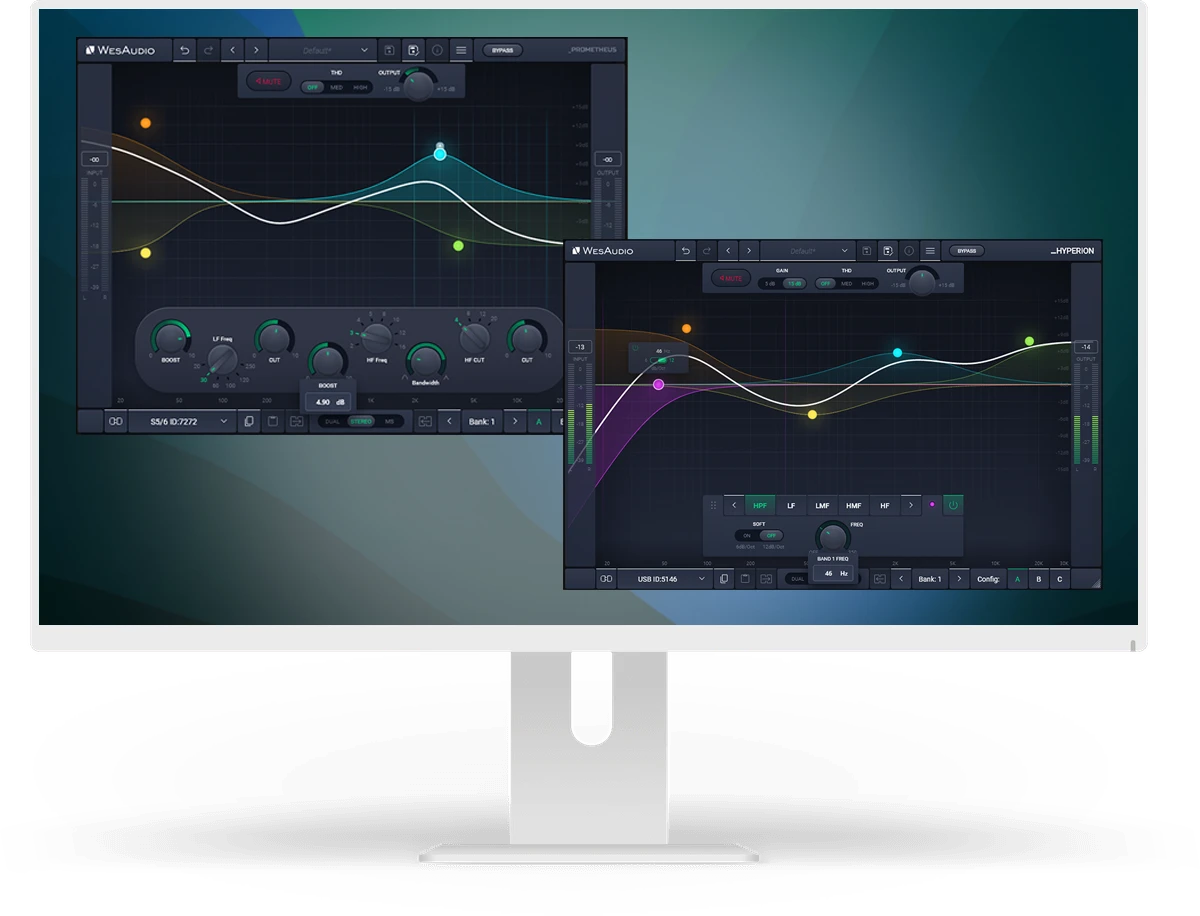
APP FOR MAC AND PC
Digital control features for fully analog units.
ngSumBox VIDEO STORIES
Watch the product videos
I like the WesAudio stuff mainly for how it sounds.
Katy Perry, Red Hot Chili Peppers, Ariana Grande, ZZ Top, Justin Bieber

This is technology that I’ve been waiting for a long time. It’s taken this long…it’s taken Wes Audio to be the ones to have seamlessly made this digital control work well. Wes Audio has created an analog compressor that sounds amazing and has the flexibility of any great stereo analog box
Beyoncé, Mariah Carey,James Brown, Lady Gaga, Notorious BIG, Black Eyed Peas,R. Kelly, Jennifer Lopez, Puff Daddy, Tupac Shakur, and many others
WesAudio nailed it with ngBusComp. It's been on my mix bus since the first time I tried it. After A/B'ing it with the original quad VCA unit, I was honestly blown away by how much better it is.
Beyonce, Jay-Z, Fka Twigs, and more.


I did a lot of a/b with my other SSL clones and plugins. I find that ngBusComp sounds better than all of them.
Olivia Rodrigo’s Multi-platinium “Driver’s License”, Carlie Rae Jepsen, Niko Rubio, Giorgio Moroder, Lady Gaga, Lost Kings, Melanie Martinez, LP, Bebe Rexha and more….

The ability to control an analog compressor from within the DAW has become a valuable feature to my workflow. The Dione is a great sounding unit and is a perfect example of where the future of pro audio is heading.
Gold & Platinum award producer
_MIMAS is as good as my other 1176 in the rack…I love this technology.
The diones are so very good. It’s such a flexible all purpose compressor. I haven’t found anything it doesn’t do well. Parallel compression on drum bus, compressing multiple keyboards in order to level them all out etc… they are sonically rich sounding, and the distortion modes sound fantastic.
I had several SSL type compressors in the years and for me there’s zero doubt, the WesAudio _Dione is by far the best in that category. _Dione never left my 2bus since the day I got it.
These days it’s really easy to excited about all of the technology we have access to. Which is also another the reason why I do my best to try and spot what really shines in this industry. To me, Wesaudio has something really special going on. Not only are the analog components up to snuff…but I believe they have the potential to be the leaders of the 500 series format. They have the analog/digital hybrid down to a refined science without the need of middle hardware. But most importantly, their stuff simply sounds great!
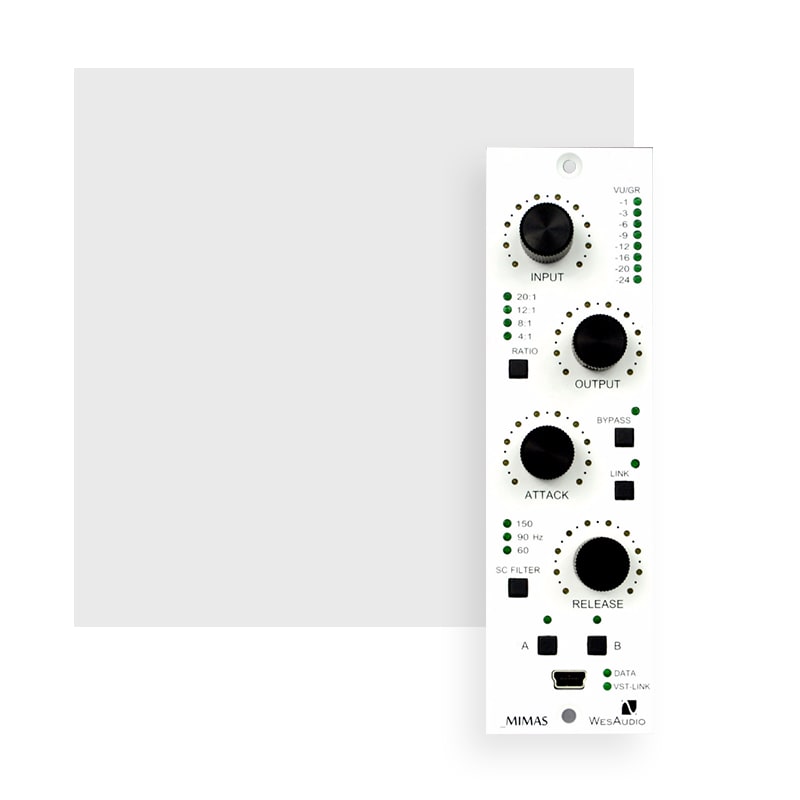
_MIMAS – This first enhanced 500-series module from Wes Audio is both convenient and impressive: it provides an updated version of the classic 1176 compressor, but with full remote-control facilities via a VST 3/AAX plug-in.
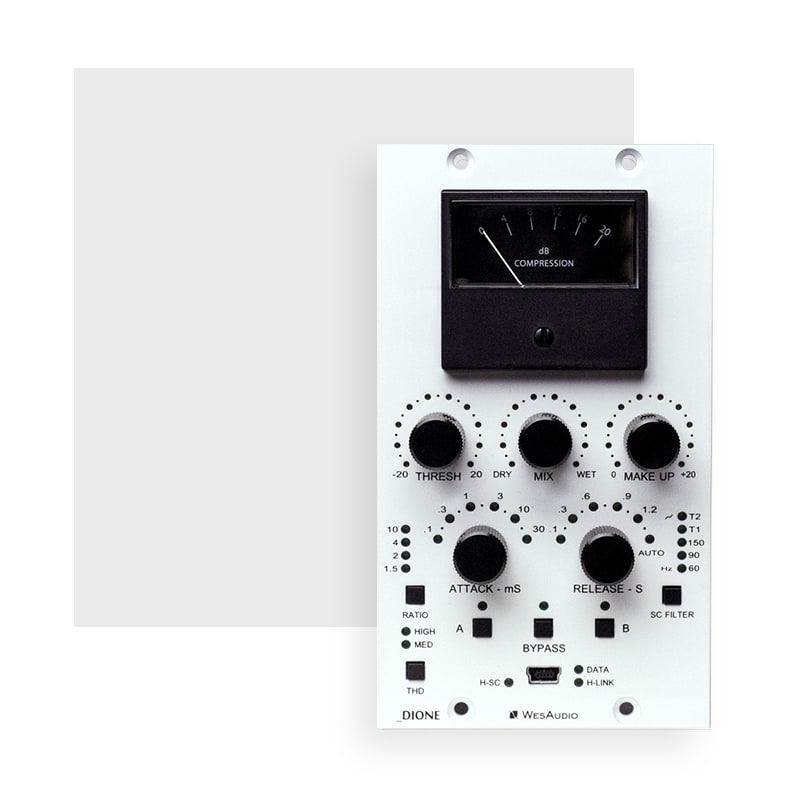
_DIONE – A well thought-out interpretation of the classic SSL bus compressor design that genuinely brings something new to the table.
FAQ
Frequently Asked Questions
ng76 implements two different revisions due to the selectable input mode:
VINTAGE – Revision F (transformer balanced input).
MODERN – Revision G (electronically balanced input).
There is no need to uninstall the WesAudio application before installing a new release. The update process will seamlessly overwrite the existing version.
To uninstall the WesAudio application, please follow the instructions below.
MacOS:
The WesAudio installation package includes a dedicated uninstaller.
Simply locate and run the WesAudio Uninstaller to remove the application from your system.
Windows:
-
Click Start on the taskbar.
-
Open Settings.
-
Select Applications from the left-side menu.
-
ClickInstalled applications.
-
In the search bar, type “WesAudio”.
-
Click the three dots on the right side.
-
Select Uninstall and follow the on-screen instructions.
If the module doesn’t react to any changes to the knobs on the front panel, the first necessary step is to rewrite firmware into the flash memory (Factory reset procedure re-writes firmware into internal flash memory – it doesn’t affect anyhow unit configuration). To proceed with factory reset, please follow below steps:
- Connect unit either:
- Through front panel USB socket,
- Or keep the unit in ng500 chassis – _TITAN, but please note that chassis has to be connected to the PC/MAC either via USB or Ethernet cable.
- POWER OFF your 500 series chassis.
- Depends on the product please press following front panel control:
- _MIMAS – RATIO button,
- _DIONE – RATIO button,
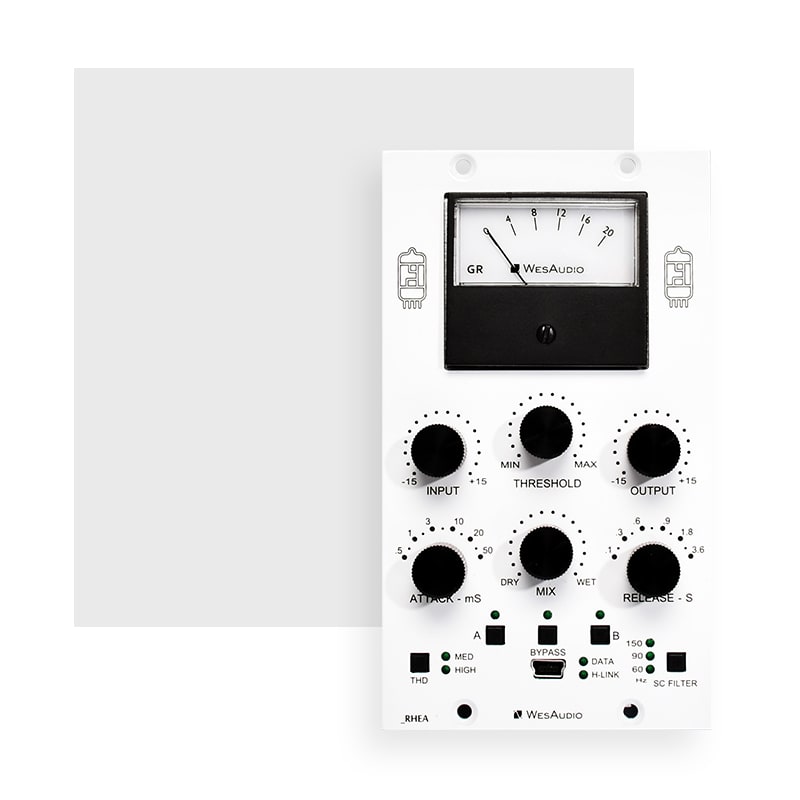
- _RHEA – THD button,
- _PROMETHEUS – HIGH CUT encoder (top-right encoder),
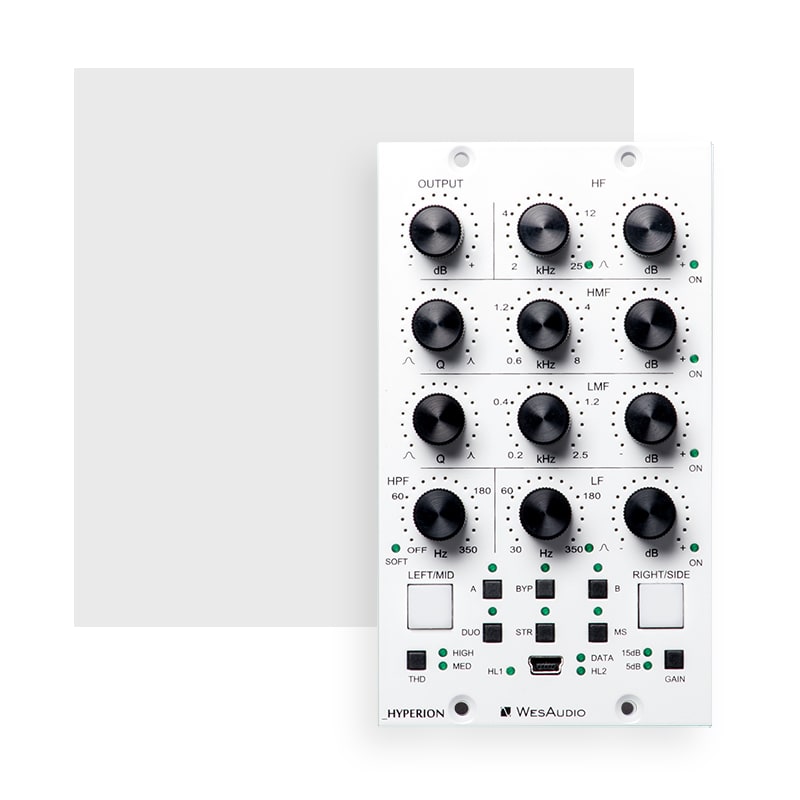
- _HYPERION – LMF GAIN encoder,
- _CALYPSO – MENU encoder,
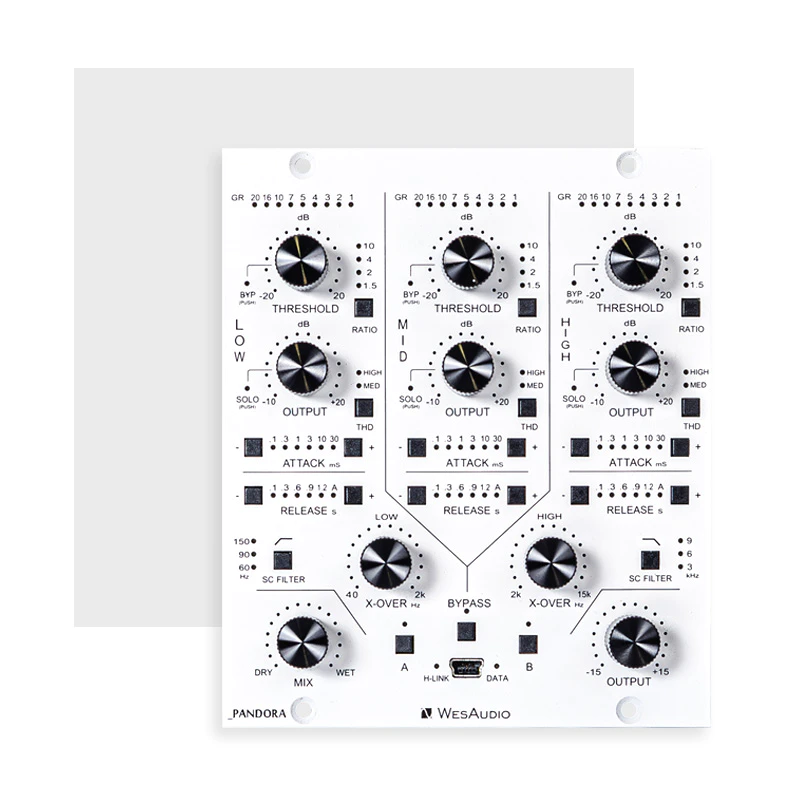
- _PANDORA – HIGH SC FILTER (right button).
- While keeping this control (button/encoder) pressed, POWER ON your 500 series chassis.
- LEDs should present a strange pattern.
- Now open GConManager:
- WIN: C:/Program Files (x86)/WesAudio/GConManager.exe
- MAC: /Applications/WesAudio/GConManager.app
- Or click on the WesAudio “Tray” icon, and select “Open GConManager”
- Go to _UPGRADE application.
- Hit start!
If the module doesn’t react to any changes to the knobs on the front panel, the first necessary step is to rewrite firmware into the flash memory (Factory reset procedure re-writes firmware into internal flash memory – it doesn’t affect anyhow unit configuration). To proceed with factory reset, please follow below steps:
- Connect the unit to either USB or Ethernet.
- POWER OFF your unit.
- Depends on the product please press following front panel control:
- ngBusComp – far left Ratio on Channel 1 (Ratio “-”),
- _TITAN – any LINK button between slot connectors,
- ngTubeEQ – THD encoder on Channel 1,
- ngTubeComp – Saturation encoder on Channel 1,
- ng76 – “IN MODE” button,
- ngLEVELER – use a small screwdriver and press button available on the rear panel via a small hole in the chassis.
- While keeping this control (button/encoder) pressed, POWER ON your unit.
- LEDs should present a strange pattern.
- Now open GConManager:
- WIN: C:/Program Files (x86)/WesAudio/GConManager.exe
- MAC: /Applications/WesAudio/GConManager.app
- Or click on the WesAudio “Tray” icon, and select “Open GConManager”
- Go to _UPGRADE application.
- Hit start!
This is a very common issue and in most cases the root cause lies in the connection of the unit and audio interface. If that happens it should be checked if audio interface input isn’t connected to the chassis input and if audio interface output isn’t connected to chassis output. As this initially would seem to be entirely wrong and shouldn’t work at all, as all our units implement “True Bypass” via relays, the unit will pass a signal when the bypass is engaged. The reason for that is that the relay is in fact hard wiring input to the output, and thus the unit will pass the signal, as it doesn’t go through any active circuit of the unit.
This is actually how it is supposed to work, so after the plug-in instance is created, please use a small triangle button which usually is on the bottom side of the plug-in and select proper HW ID from the drop down menu. If the drop down menu doesn’t list any hardware units, please check Your connectivity and other possible root causes in this FAQ.
This is a wide topic, and there may be at least several root causes, but there are few things that should be checked. However, the first and most important thing is to double check that GConManager doesn’t list this device in the _CONFIG app. If this is the case, it means that WesAudio unit can’t connect on the OS level, and some of the below steps may help:
- First of all double check if module connection is properly executed, this procedure is described here.
- USB specification indicates that USB 2.0 works up to 5 meters. This is however not entirely true, as it strongly depends on the peripherals that unit is connected to. Even if our modules are USB 2.0 compatible, your USB port could support USB 3.0 – USB is a backward compatible protocol, so it may be that USB 3.0 cable length limit should be considered which is 2 meters. We would recommend having a USB cable up to 2 meters to remove those limitations from the equation.
- USB HUB is very common root cause to those problems, if module can’t connect via HUB – just for the sake of the test, it is mandatory to connect unit directly to PC/MAC to verify if the problem isn’t caused by it.
- Please note any system warnings attached to “WesAudio Tray Icon”.
As USB controllers have limited capacity it could be a reason for random unit disconnection. Usually, it happens when a lot of USB devices are plugged into the PC/MAC. The usual behavior would be that the unit works normally, and after reboot it doesn’t, but it strongly depends on the OS implementation so exact reaction could be a little bit different. If this is suspected, just for the test, it would be good to disconnect most of the devices from the USB ports, reboot PC/MAC and double check the connectivity from stability point of view. If it leads to the conclusion that this is the root cause of the problem, we would recommend using a decent USB hub, and ideally a TB/USB dock station which tends to offload a lot of responsibilities from our PC/MAC.
If the unit was working fine, and suddenly it couldn’t connect (it is not visible in the GConManager _CONFIG app) that could lead to the conclusion that some devices were added to our USB line, and we could have problems with the USB controller inside PC/MAC. In that case please check the description in the above “Unit disconnects by itself”.
GConManager in Admin mode enables special functionalities which are used during WesAudio units calibration.
Starting from GCon 15, Admin mode can be activated through the GCon Manager app:
- Open the GCon Manager app.
- Navigate to Settings.
- Click the padlock icon to unlock the settings.
- Check the Admin Mode box to enable it.
Alternatively, Admin mode can be activated by following these instructions:
OSX:
- Please open terminal.
- Copy-Paste following command:
open /Applications/WesAudio/GConManager.app --args --admin
WINDOWS:
- Go to “START” and open “Command Line”.
- copy paste this command:
"c:\Program Files (x86)\WesAudio\GConManager.exe" --admin